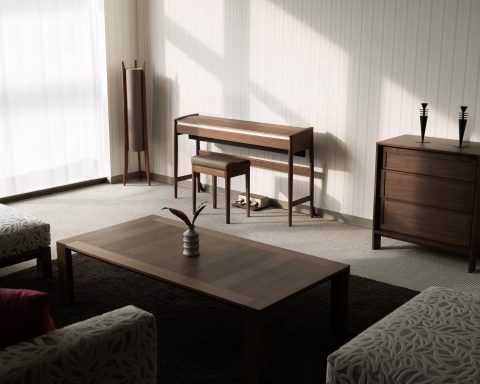
The FP-40 is no ordinary piano. Paired with Piano Sphere, the system unlocks a brand new way to sharpen your piano skills and stay motivated to continue learning. Choose from customized learning journeys, classic and popular songs, or stream your favorite music to play along. And if you ever get stuck on a particularly tricky passage, Piano Sphere will help you slow down and loop that section until you nail it.
But first things first, we’ve put together a handy collection of videos that will walk you through setting up your piano, using key features, and integrating apps. Let’s get started.
Table of Contents
The Set Up
Whether you’re setting up your FP-40 for the first time or adding the optional KPD-70 pedal board, this video will guide you through a smooth setup process. From stand construction and pedal board installation to final adjustments and connections, you’ll find everything you need to get your piano assembled safely and ready to kick off your playing journey.
Key Feature Focus
Your FP-40 is packed with built-in features that make practice sessions more fun and fruitful. In this video, you’ll learn how to explore the different instrument tones, layer sounds for richer textures, transpose songs into easier keys, practice with the onboard metronome, and capture your performances.
Testing 1, 2, 3
Whether you’re recording a song idea, creating content for social media, or sharing lessons online, your FP-40 makes it easy to capture piano and vocals in one recording. In this video, you’ll learn how to connect a headset microphone, adjust microphone volume and effects, connect to your mobile device, and record high-quality audio and video using your favorite camera app.
Start Streaming
Play along with your favorite music using Bluetooth audio connectivity. Your FP-40 can wirelessly stream music from your smartphone or tablet through its onboard speakers, creating an easy and immersive way to play along with songs, backing tracks, lessons, and more. This video demonstrates the quick pairing process so you can get connected and start playing.
Take Control
The Roland Piano App unlocks even more within your FP-40. By connecting wirelessly via Bluetooth MIDI, you can access enhanced controls, settings, and interactive features directly from your mobile device. This video walks through the connection process and provides troubleshooting guidance for both iOS and Android devices.
Enter the Piano Sphere
The Piano Sphere App, developed with Skoove, opens a new dimension for your piano playing with personalized guidance, real-time feedback, and a library of popular and classic songs to keep you playing. In this video, you’ll learn how to connect your instrument to a smartphone or tablet, complete the initial setup, and connect to Wi-Fi for a seamless app experience.
Step 1: Connect Your Piano and Get Online
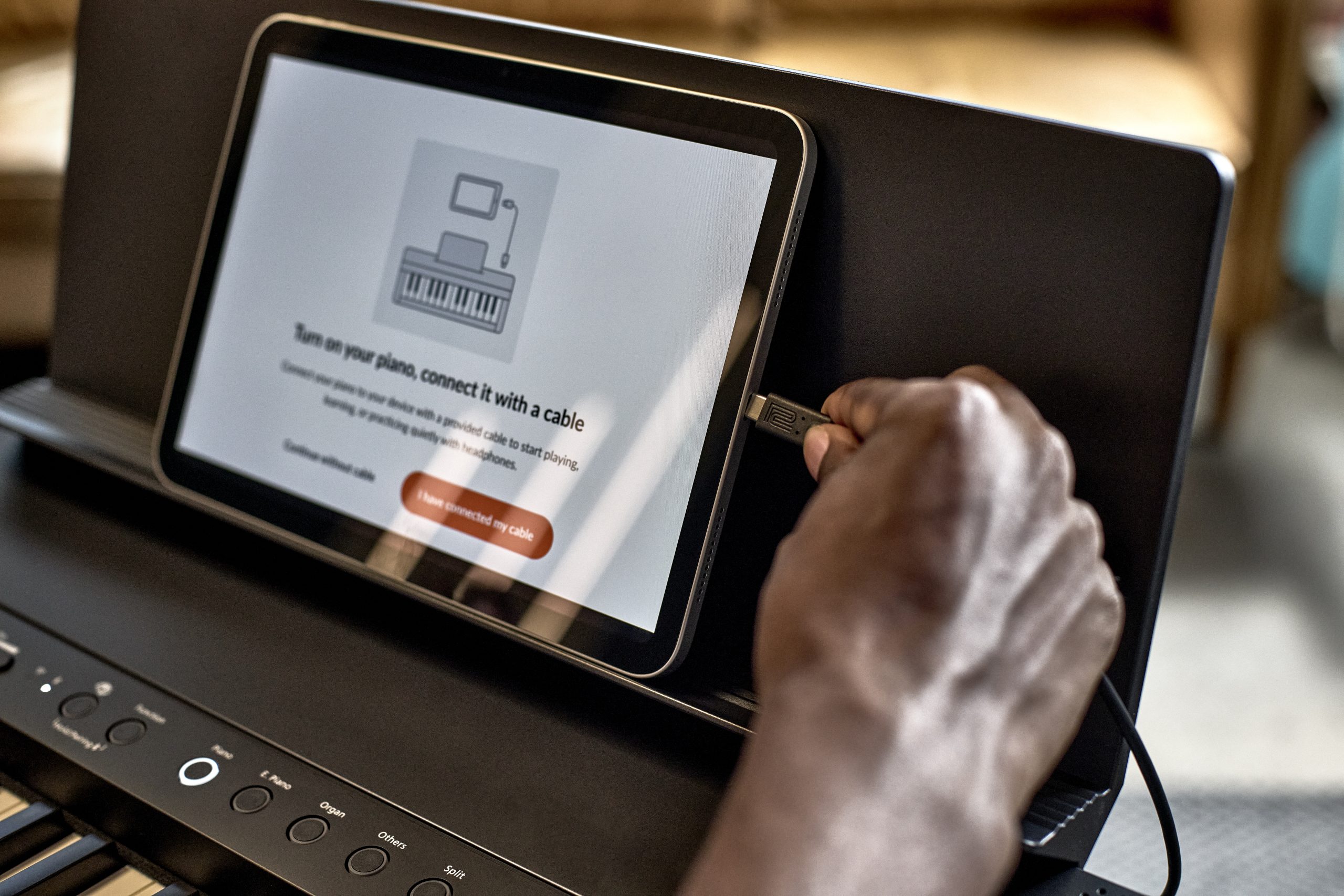
Before you can start learning, you’ll need to connect your FP-40 to the Piano Sphere app and complete Wi-Fi setup.
The app will guide you through connecting your piano via USB or Bluetooth. Once connected, you can register your instrument and get everything ready for your learning journey.
Step 2: Create Your Personal Learning Profile
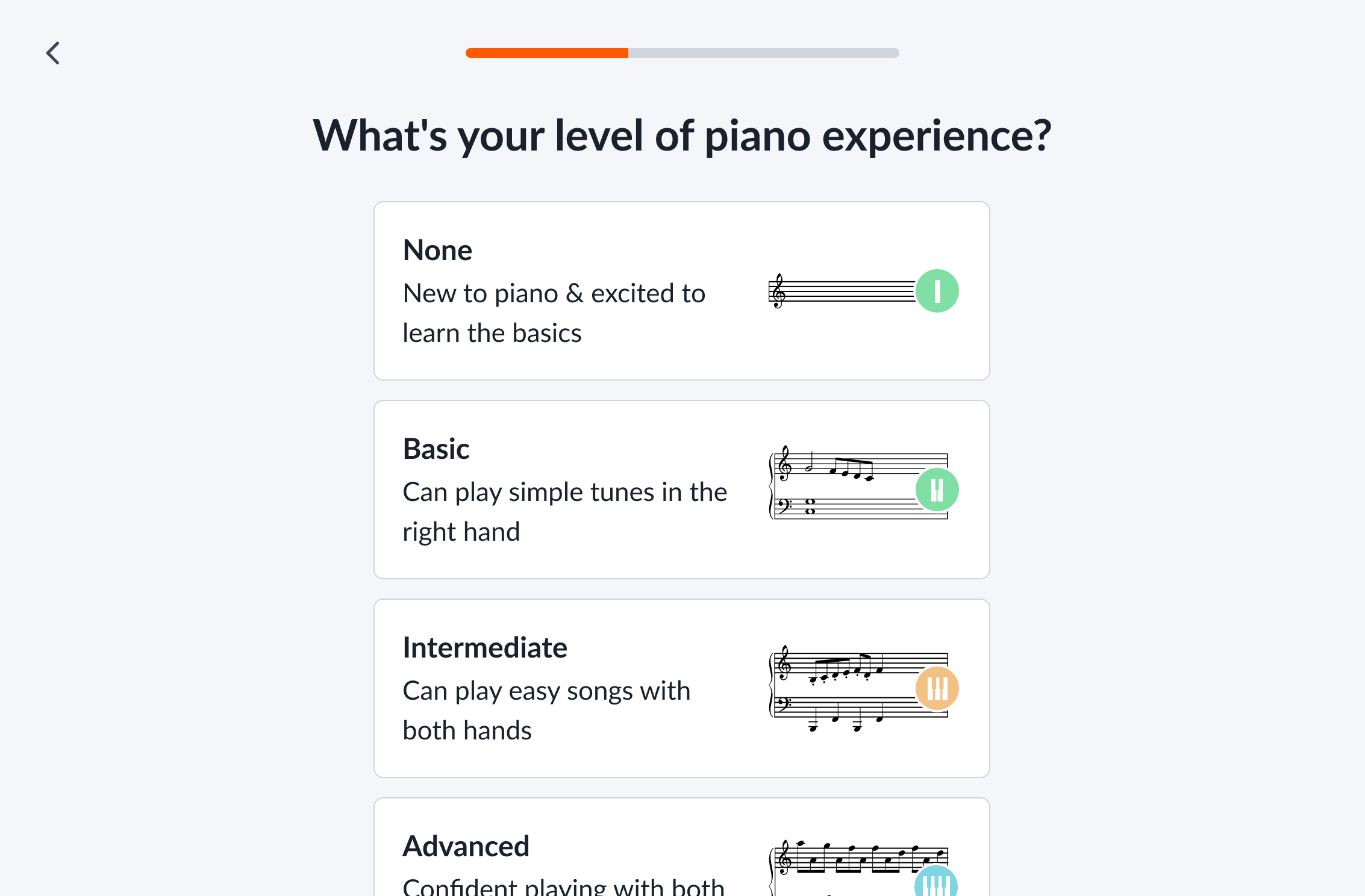
Getting started takes just a moment. During setup, Piano Sphere will ask a few simple questions about your playing experience, goals, and how often you’d like to practice.
Using your answers, the app creates a personalized learning path tailored to your skill level and interests, helping you spend less time searching and more time playing.
Step 3: Play Your First Song
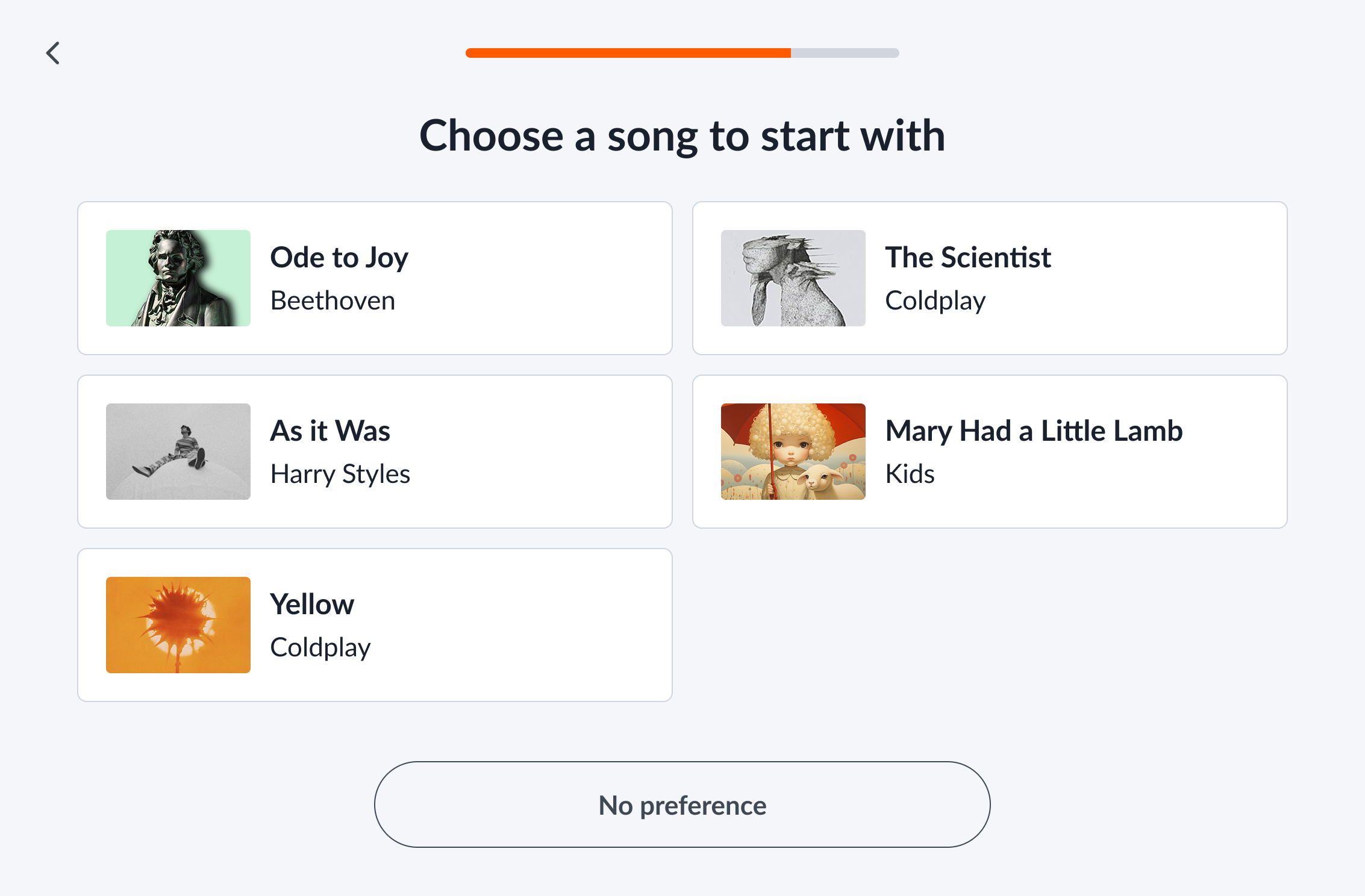
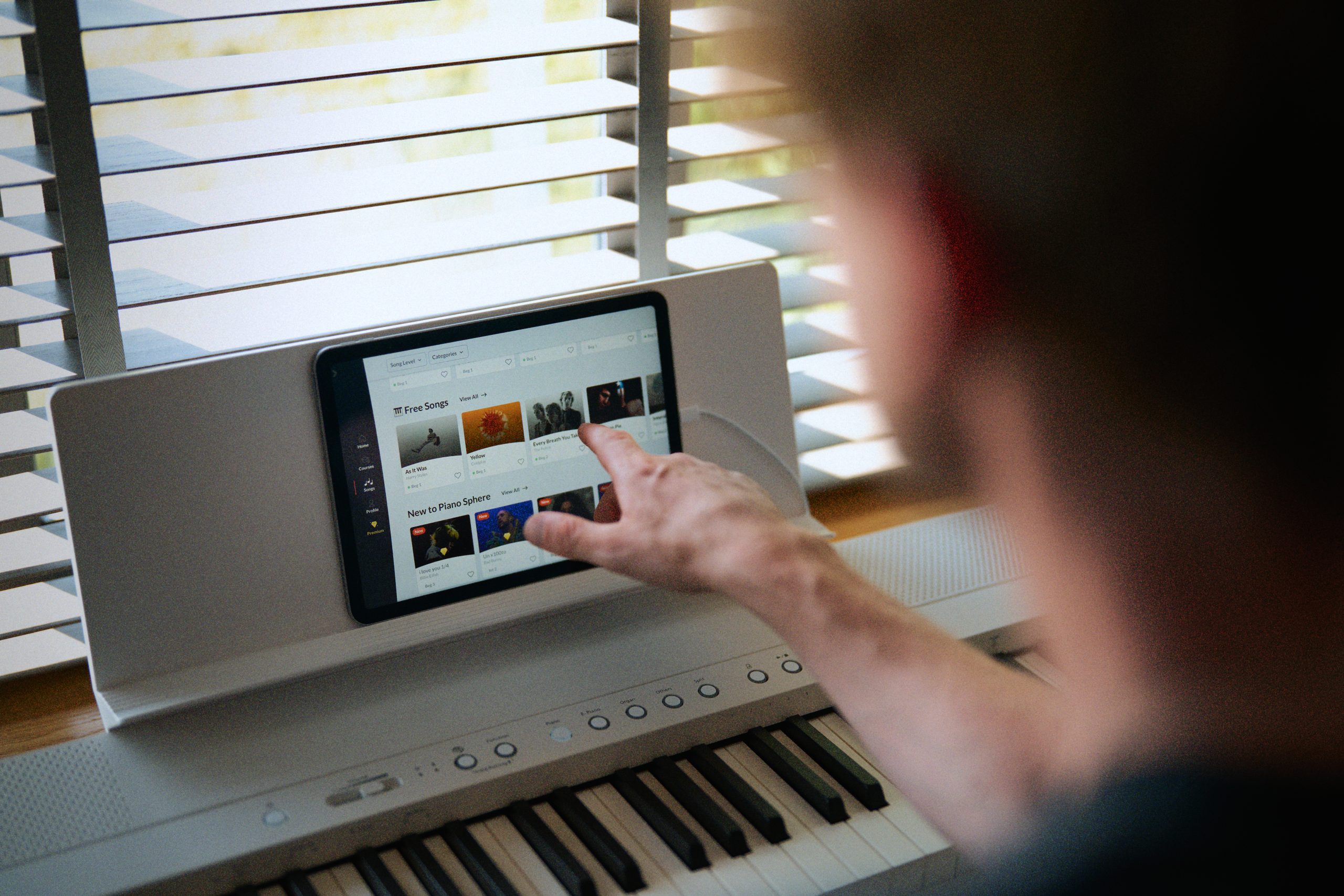
Once your profile is complete, it’s time to start making music. Piano Sphere includes access to 100 free songs spanning a variety of genres and styles. Based on your profile, the app will recommend a song to help you get started right away.
Prefer to choose your own? Head to the Songs tab and browse the full library. Filter by genre or difficulty level to find something that matches your taste and experience.
Step 4: Set Course
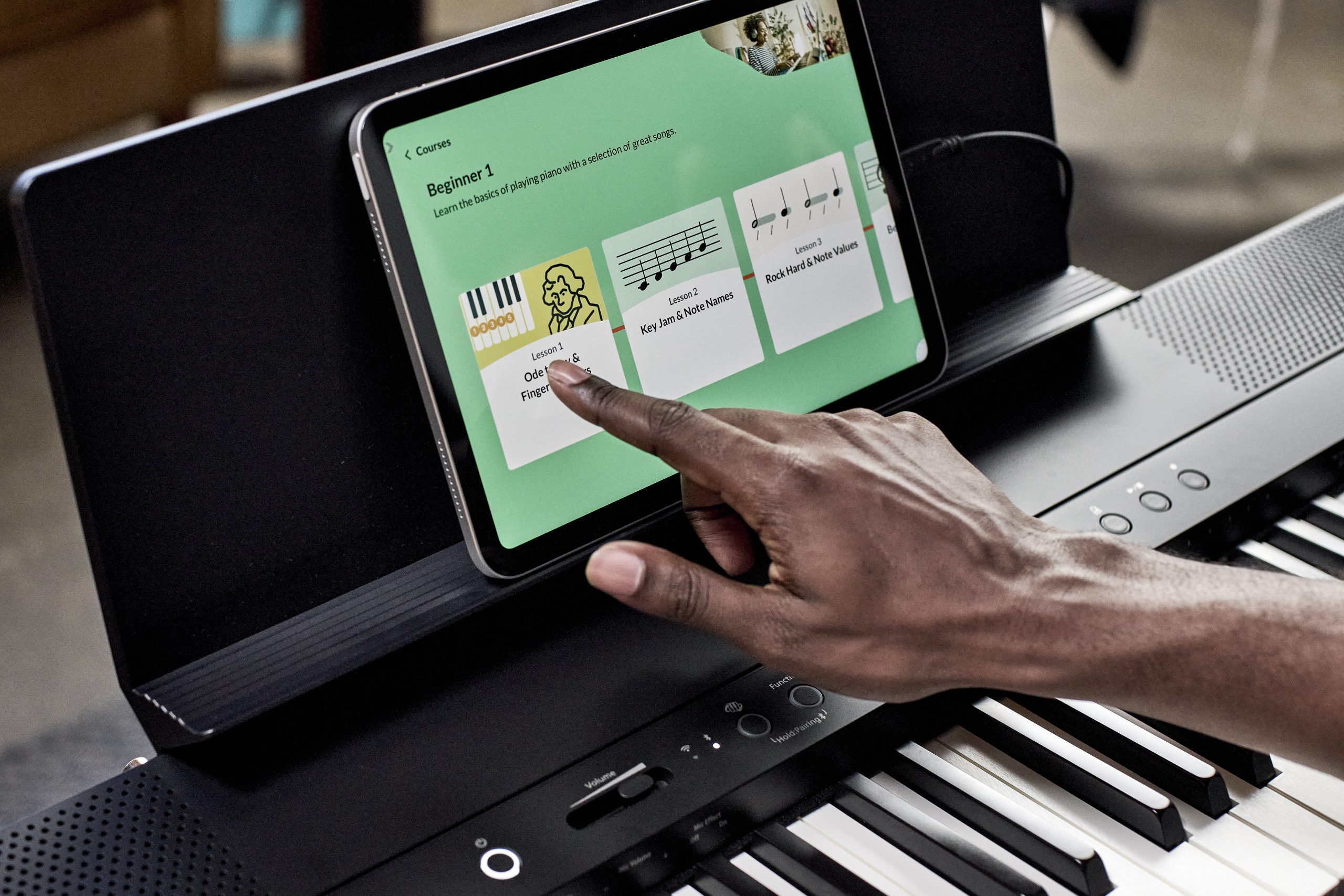
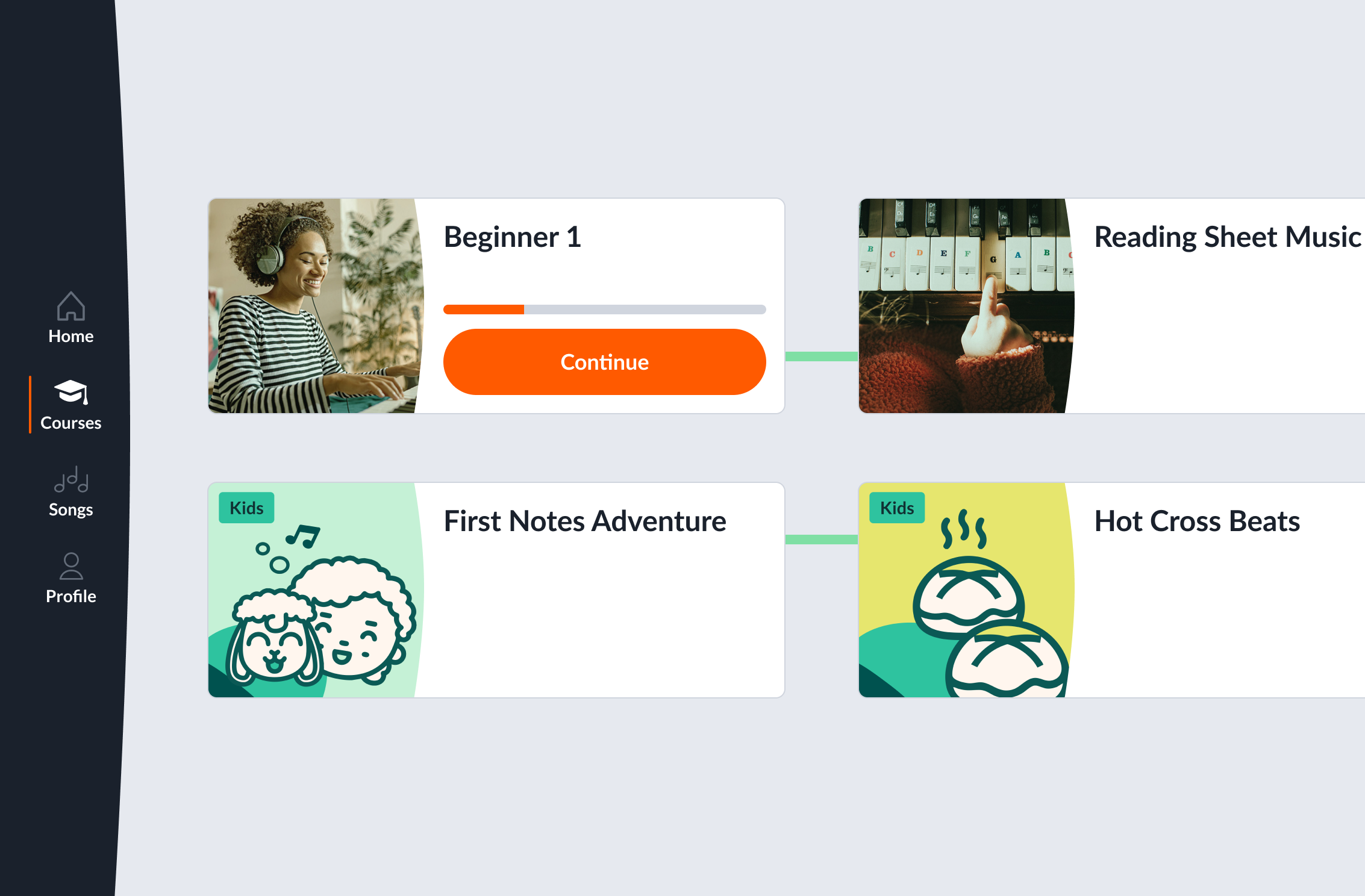
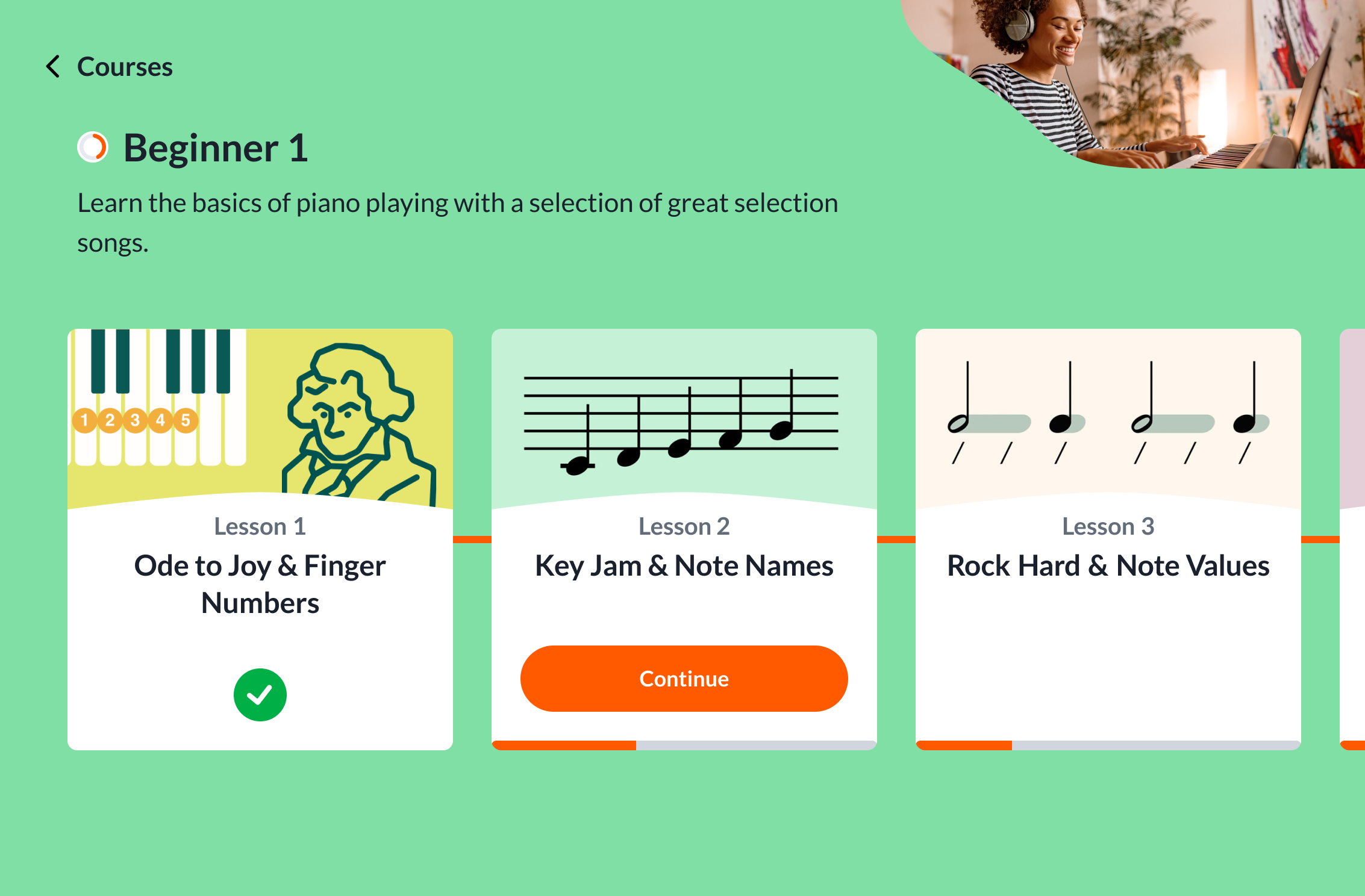
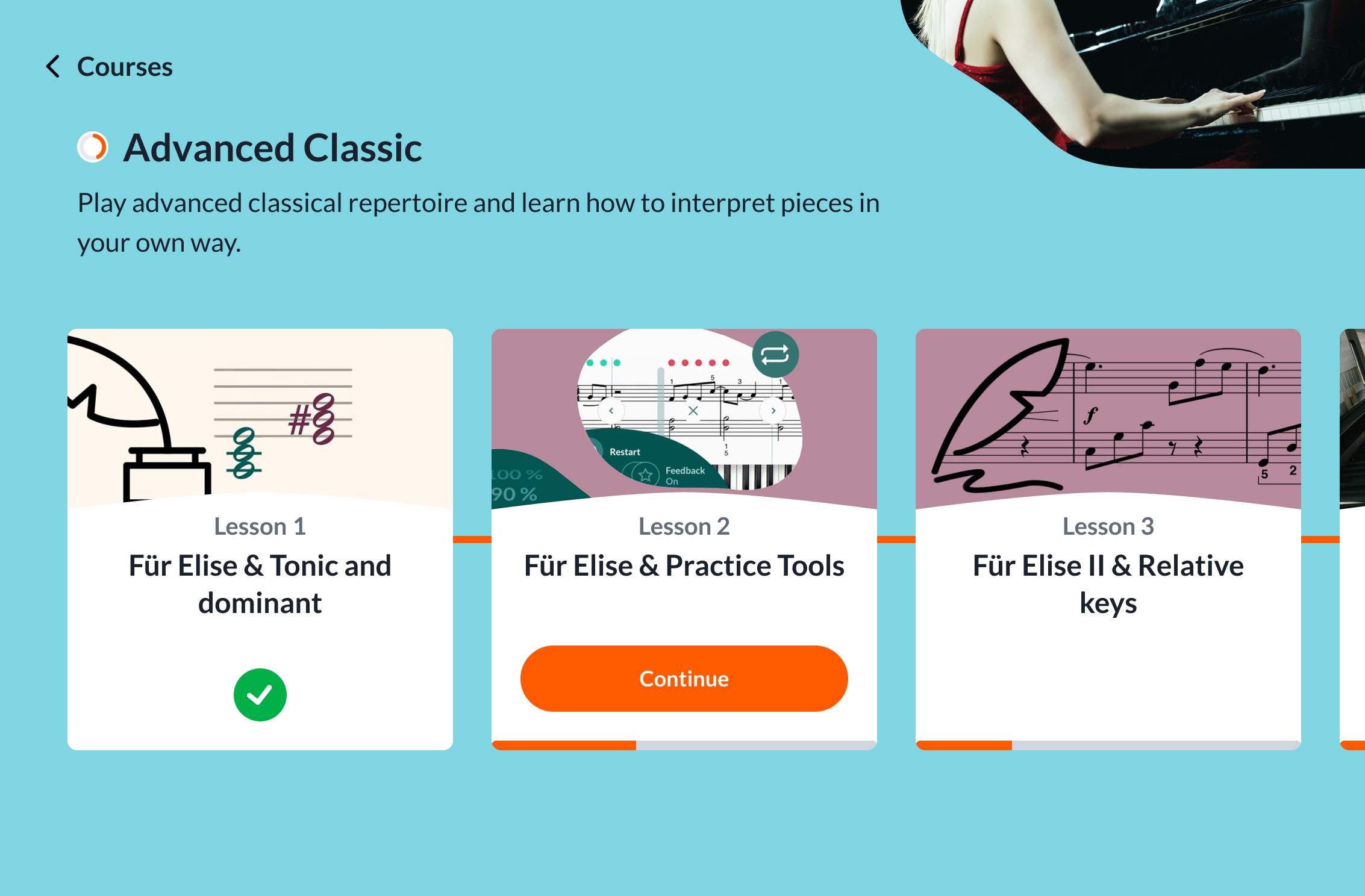
If you’re looking for a more structured learning experience, visit the Courses tab. Piano Sphere includes three free courses designed for different skill levels, making it easy to find the right place to begin. As you progress, the app tracks your achievements and helps keep you motivated.
If a course feels too challenging or too easy, you can switch at any time and continue learning at your own pace.
Step 5: Find Your Tempo
Learning a new piece is easier when you can practice at a comfortable speed. While playing a song, use the tempo controls to slow down difficult passages or increase the speed as your confidence grows. This feature makes it easier to learn accurately and build muscle memory before performing at full tempo.
Step 6: Streak for Rewards
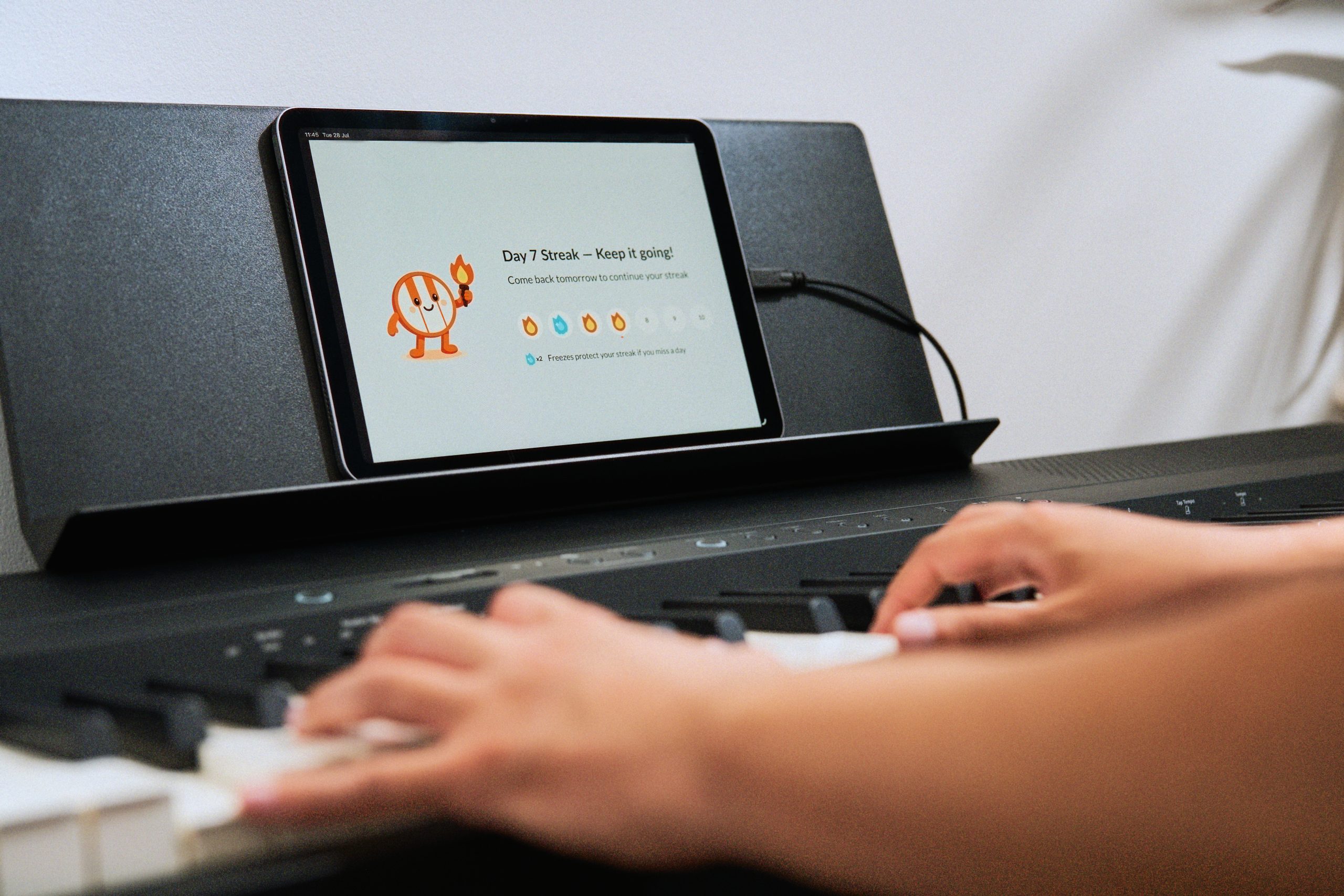
Building a habit is one of the best ways to improve your playing, and Piano Sphere makes it easy to stay motivated. Simply play regularly to begin a streak. The longer you maintain your streak, the more rewards you’ll earn.
If life gets in the way, streak freezes can help protect your progress when you miss a day. Miss too many days, however, and your streak will reset, giving you a fresh opportunity to start again.
Step 7: Track Your Progress
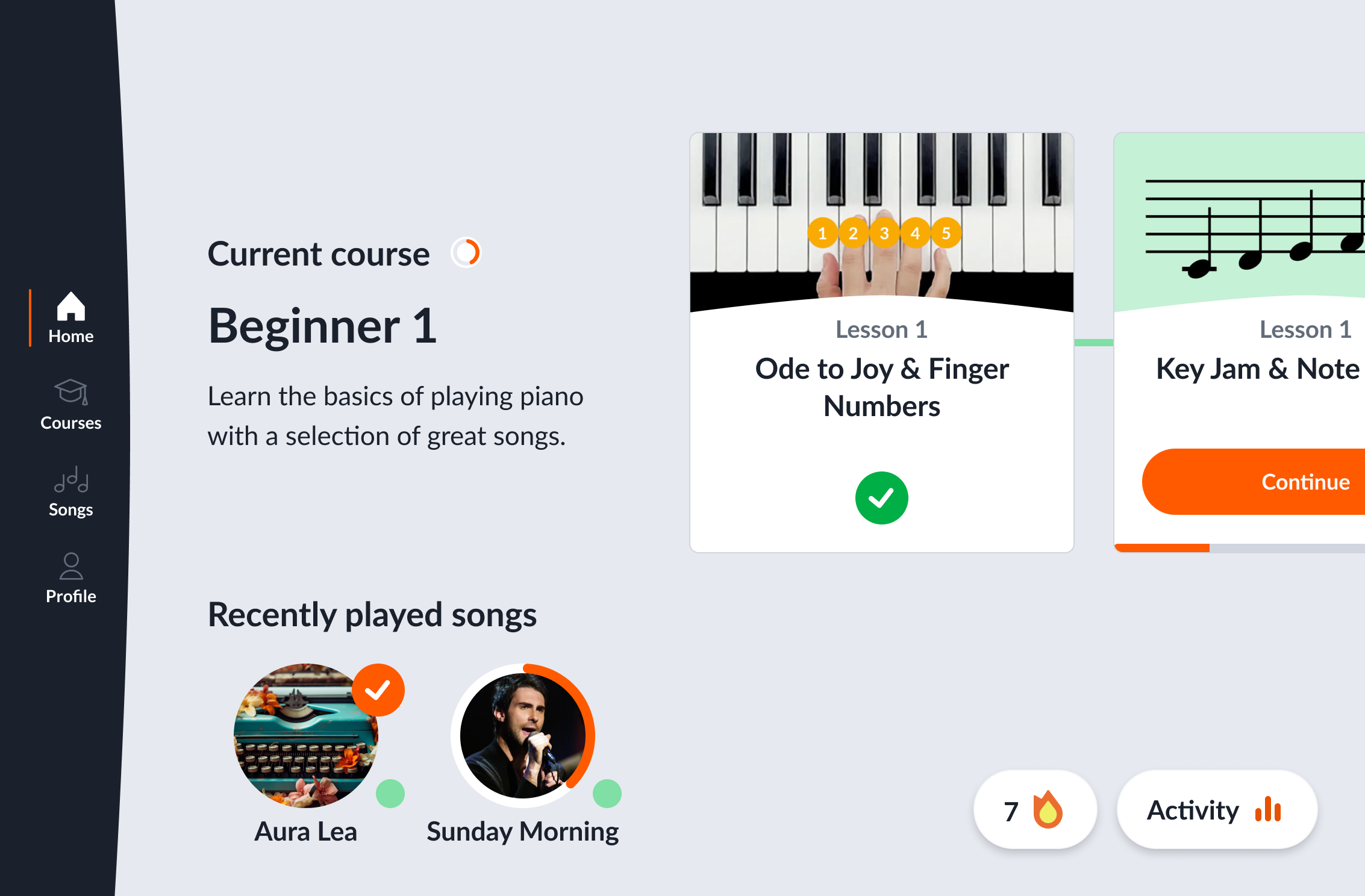
The Home tab serves as your personal Piano Sphere dashboard. From here, you can:
- Resume songs you’re currently learning
- Continue active courses
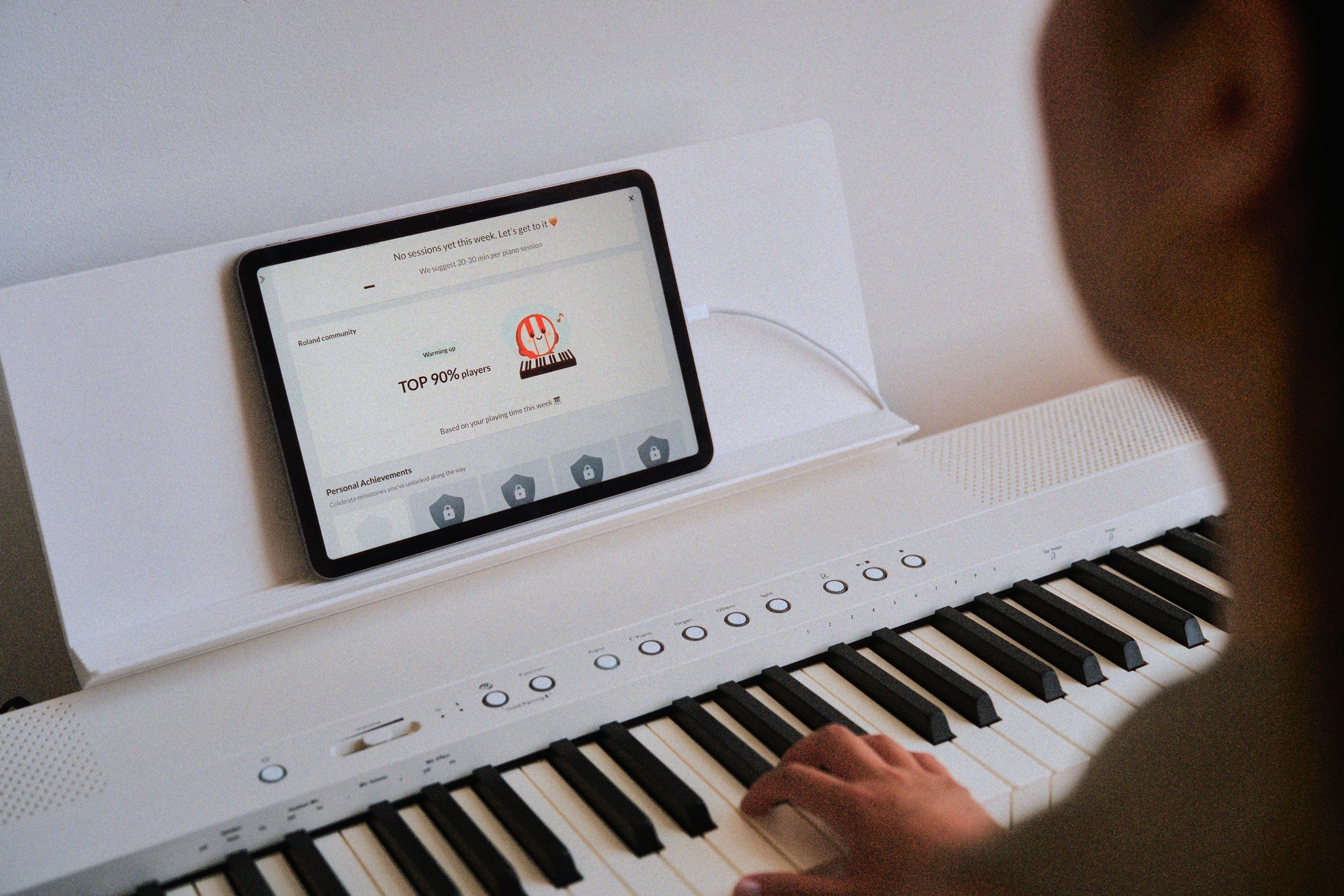
- View practice activity and statistics
- Check earned rewards
- Discover recommended songs based on your progress
Step 8: Upgrade to Premium
Ready for even more content and learning tools? You can upgrade directly within the Piano Sphere app by visiting the Premium tab and selecting a subscription option. Premium unlocks over 1,000 additional songs, learning resources, and features designed to help you get even more from your practice sessions.
Personalized Feedback: Piano Sphere Button
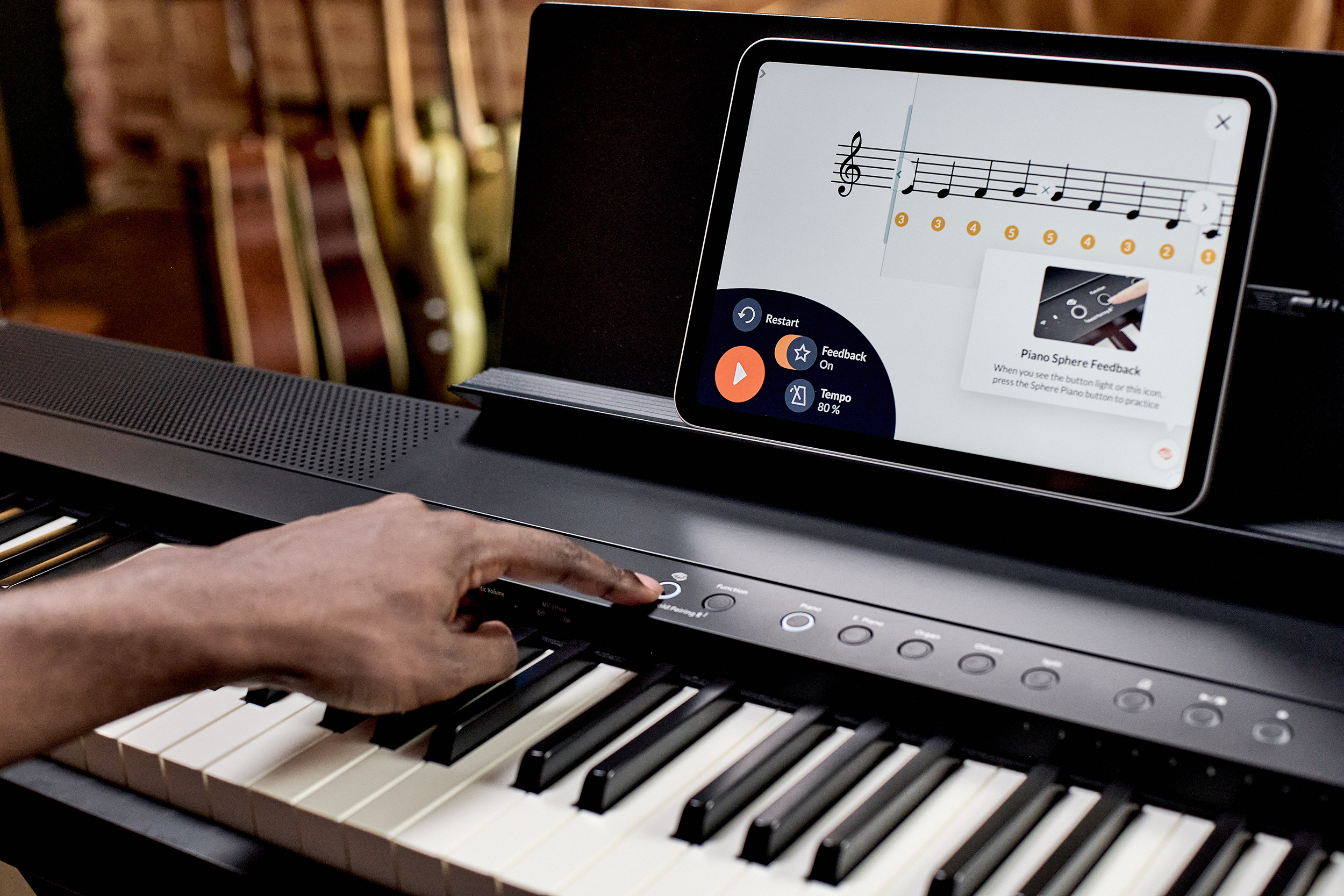
As you progress through a lesson in Piano Sphere, the Piano Sphere button does more than navigate the experience. It also provides real-time feedback designed to help you improve your playing.
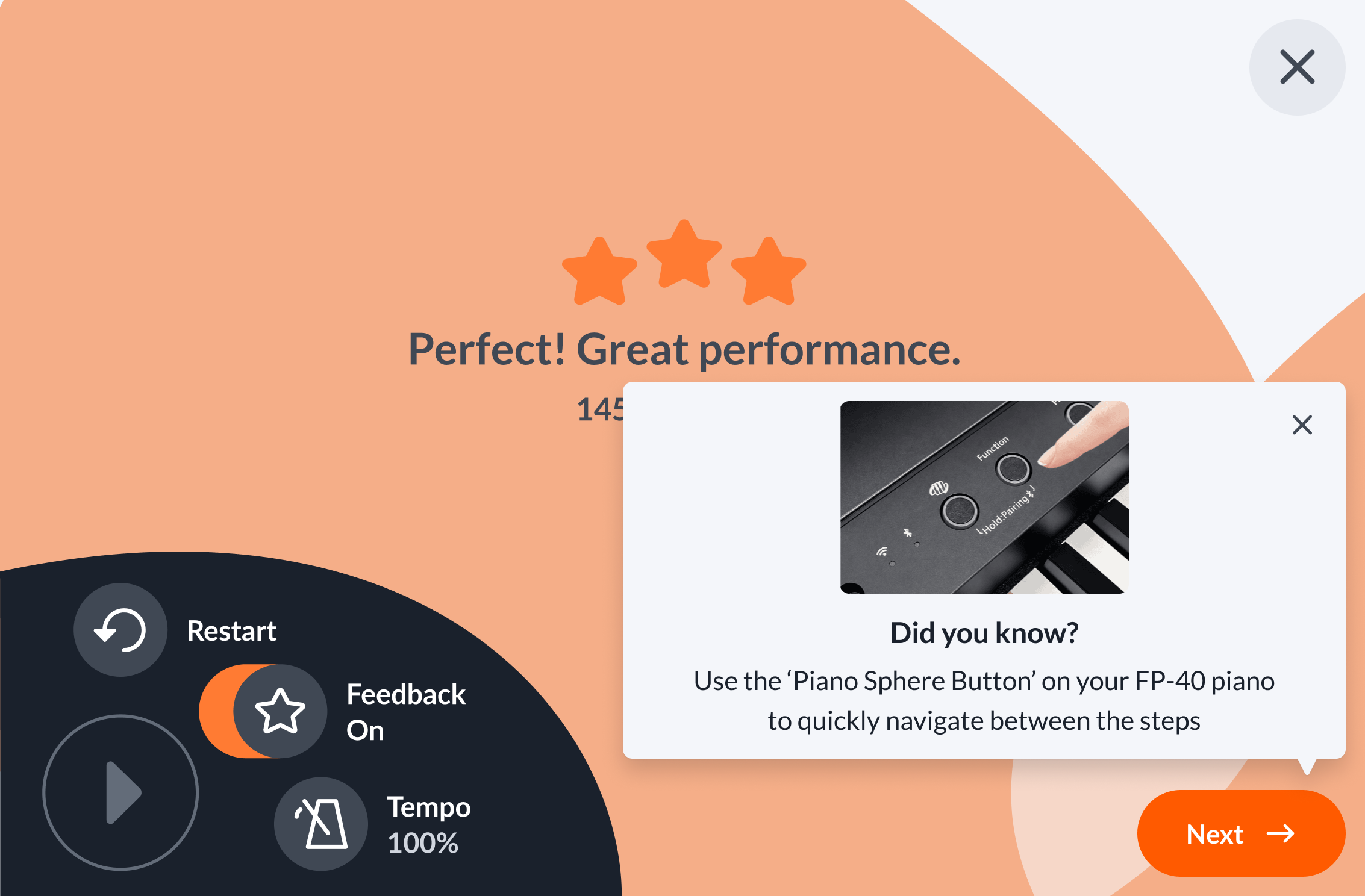
If the app detects that you’re struggling with a passage, such as playing too quickly or too slowly, the Piano Sphere button will begin flashing. Pressing the button pauses the lesson and takes you directly to that section for extra practice.
From there, Piano Sphere automatically adjusts the tempo and guides you through the passage at a more comfortable pace. As your accuracy and confidence improve, the app gradually helps you work toward the correct speed. Once you’ve successfully mastered the section, Piano Sphere confirms your progress both on screen and with verbal feedback.
When you’re ready, simply press the Piano Sphere button again to return to the full lesson and continue where you left off. If you’d prefer to practice without real-time feedback, you can disable the feature at any time during a lesson using the Feedback slider in the lesson menu.